EPG Not Available? How to Fix Your IPTV Guide in 2026
A missing Electronic Program Guide (EPG) is frustrating but usually very easy to fix. Here is our step-by-step troubleshooting guide to get your TV schedule back.
💡 Astuce : Ne perdez pas de temps à configurer, téléchargez notre app officielle ici .
The Annoyance of 'No Information'
You sit down to watch TV, open your favorite IPTV application, and instead of seeing what is currently airing, every single channel displays 'EPG is not available for this channel', 'No Information', or 'No EPG'.
The Electronic Program Guide (EPG) is what makes modern IPTV feel like traditional cable. When it breaks, navigating your channels becomes a guessing game.
Before you assume the Iron 4K Pro servers are down, you should know that 95% of EPG problems are local app issues. The data is there, but your application simply failed to download it. Here is how to fix it in a few simple steps.
---
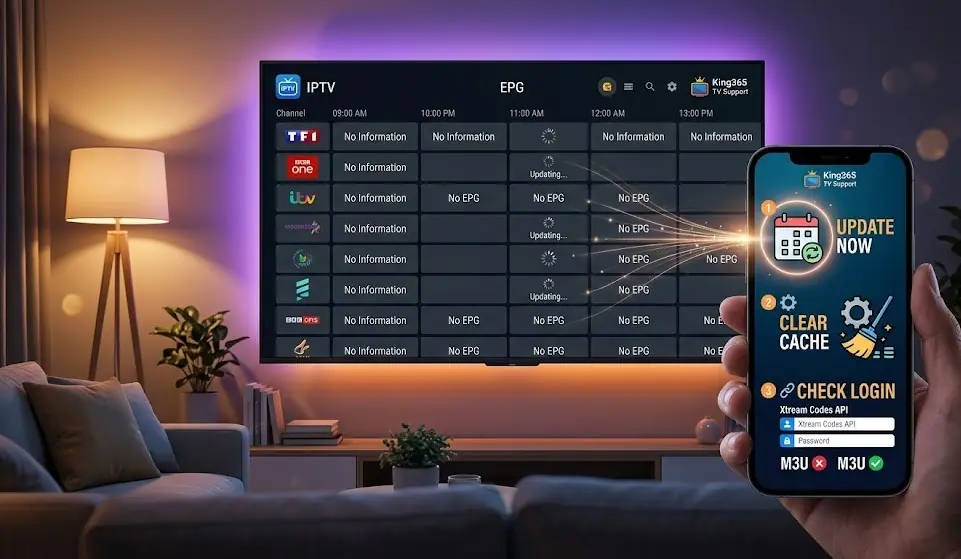
Step 1: Force a Manual EPG Update
Most apps are set to download the TV guide once a day. If your internet disconnected exactly when the app tried to download the guide, it will stay blank until the next day. The easiest fix is to force a manual download.
- On IPTV Smarters Pro: Go back to the main menu. Click on the Install EPG icon or the circular refresh icon next to the Live TV button.
- On TiviMate: While watching TV, press the left or OK button to open the menu. Go to Settings > EPG > Update EPG.
- On XCIPTV: Click the menu icon and navigate to Settings > EPG > Force EPG Update.
- M3U Link: If you pasted a long URL ending in `.m3u`, the application does not automatically know where the EPG is. You often have to manually enter a second link, called the EPG URL. If you forgot this, your guide will remain blank.
- Xtream Codes API: This is the method we highly recommend at Iron 4K Pro. By entering your server URL, username, and password separately, the application automatically pulls both the channels and the EPG data seamlessly.
- On GSE Smart IPTV: Open the app, tap the menu icon, go to EPG Settings, and tap Update EPG Now. If you connected via Xtream Codes API (recommended), this should pull automatically within a minute or two.
- On IBO Player: From the home screen, go to Settings > EPG and select Refresh. If nothing changes, log out and log back in with your Xtream Codes credentials rather than the M3U link — the same M3U-vs-Xtream distinction from Step 3 applies here too.
Wait 1 to 2 minutes. The EPG data file is quite large, so give your device time to process it.
---
Step 2: Clear the Application Cache
If forcing an update didn't work, your app might be stuck holding onto a corrupted EPG file. You need to clear its memory.
If you are using an Android TV, Firestick, or Android Box:
1. Go to your device's main Settings (the gear icon).
2. Navigate to Applications > Manage Installed Applications.
3. Find your IPTV app (e.g., TiviMate or Smarters) and click on it.
4. Select Clear Cache (Warning: Do NOT click 'Clear Data', or you will delete your login details!).
5. Reopen the app and let it sync from scratch.
---
Step 3: Xtream Codes vs. M3U Links
How did you log into your app? This makes a huge difference.
If your app supports Xtream Codes, always use it instead of a raw M3U link.
---
---
Why Some Channels Have No EPG But Others Do
Sometimes the guide isn't fully blank — most channels show a schedule, but a handful stubbornly display 'No Information.' This is a different problem than a fully blank EPG, and it's not something you can fix on your end.
It almost always means the EPG source simply doesn't have data for that specific channel, either because the channel name in your provider's list doesn't exactly match the name in the EPG database, or because that particular channel isn't covered by the guide source at all.
How to confirm this is the cause: Check a well-known channel (a major national network) first. If it has a full schedule, your setup is working correctly — the issue is isolated to specific channels, not your app or connection. In that case, there's no local fix; it's a data-coverage gap you'd report to support rather than troubleshoot yourself.
---
EPG Fix for GSE Smart IPTV and IBO Player
---
Bonus Fix: The Guide Shows the Wrong Time
What if the guide is there, but the programs are off by 2 or 3 hours? This is a timezone mismatch between the server and your device.
Almost every premium IPTV app has a feature called EPG Time Shift or EPG Offset.
Go to your app's EPG settings and adjust the 'Time Shift' by +1, -1, or however many hours you are off by, until the schedule aligns perfectly with what is airing on screen.
Tired of Missing EPGs?
A flawless TV guide requires a powerful server. Iron 4K Pro provides fully synced, up-to-date EPG data for over 15,000 channels globally. Upgrade your experience today.
📅Get Your Premium AccessFrequently Asked Questions
Why does it say 'EPG not available for this channel'?
Usually one of two causes: the app hasn't finished downloading EPG data yet for that channel (try Step 1 above), or that specific channel isn't covered by the EPG source at all. Check a major, well-known channel first — if its guide is complete, the issue is isolated to specific channels, not your setup.
How long does EPG take to load after a fresh install?
Typically 1 to 2 minutes, but it can take longer on a slower connection since the full guide file can be several megabytes. Give it time before assuming something is broken.
Does a VPN affect EPG loading?
Not normally, but a slow or overloaded VPN server can cause the download to time out. If your EPG stops loading specifically after turning on a VPN, try switching to a different server location.